Android 10 Recent Apps are one of those things that most people use daily without knowing what they can accomplish. You swipe up, see a list of open apps, maybe switch to one—and that’s it. But there is a lot more going on underneath the surface, and knowing how to make full use of it makes your phone a lot more valuable.
If you are a student jumping between browser and note-taking apps, a freelancer jumping between email and project apps, or you simply want your phone to seem less cluttered, this article offers something for you.
What Are Recent Apps On Android 10?
Android 10 recent apps is a multitasking feature that reveals all the apps that are now open or recently used on your device. It’s fast access to apps you’ve been working on without having to hunt and relaunch from fresh.
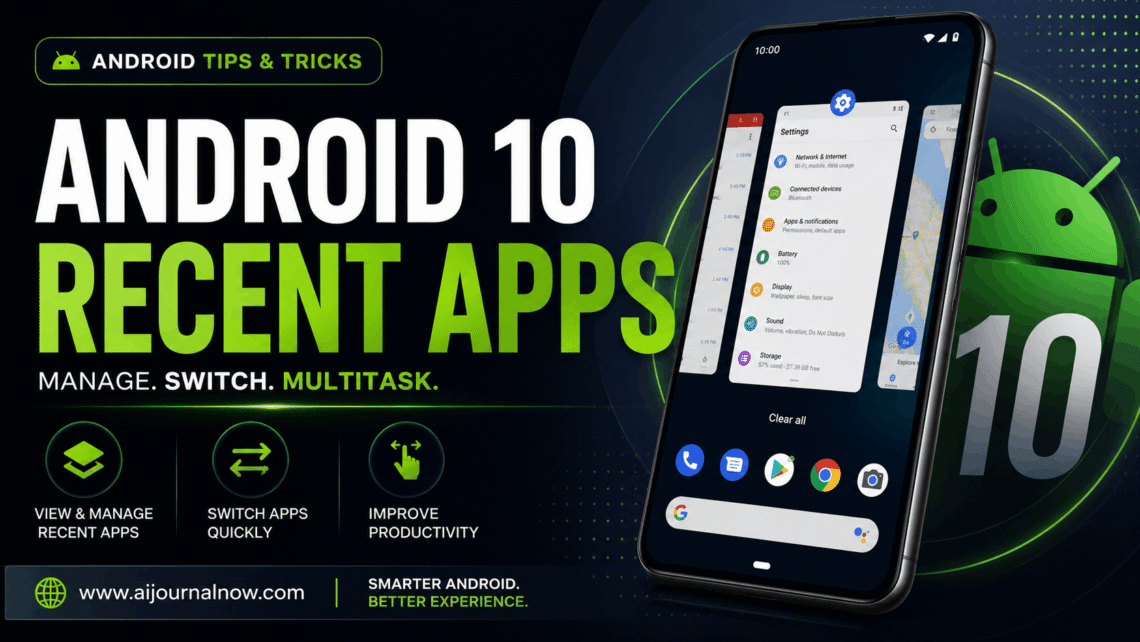
On Android 10, Google made gesture navigation the default. This modified the way users get to recent apps. Now instead of touching on a square or recent-apps button, you swipe up from the bottom of the screen and hold it for a second. You get a quick look in a card-like layout—a horizontal scroll of samples of your open apps.
It can feel different from prior versions of Android, but if you get used to it, it’s actually faster.
How Recent Apps Works in Android 10
This feature keeps a snapshot of your recent apps in memory. “Each app is a card with a live preview of where you left off. You can scroll through them, tap one to hop back in, or swipe it away to close it.
Here’s what’s going on behind the scenes. Android keeps recently-used apps suspended in RAM. They aren’t wide open, but they aren’t closed either. This lets the system get them back almost instantly when you switch back.
How many apps your phone can keep in this suspended state depends on the amount of RAM available on your phone. A device with 4GB of RAM will be able to run fewer apps at the same time than a device with 8GB or 12GB.
How to Use Recent Apps on Android 10
Depending on your navigation configuration, there are two basic ways:
Gesture Navigation (Default in Android 10)
Swipe up from the bottom of the screen, hold for a second, and let go. It will open the recent apps overview.
3 Button Navigation
If you used the conventional navigation bar, hit the square button on the right side of the navigation bar. The recent apps screen pops right up.
Either way, you end up in the same location—a horizontal scroll of app cards.
Android 10’s Recent Apps: What You Can Do
Most users use it to just flip between apps. That’s fine, but there are some additional important activities in Android 10 recent applications that are worth understanding.
Shut An App Down
Swipe up on an app card to close it. This removes it from the recent apps list and frees up the memory it was using. Great for when you’re done with something and want to keep things nice and neat.
Exit All Applications at Once
Scroll to the bottom of the list of recent apps. You will see a button labeled “Clear All.” It shuts all open apps at once if you tap it. This is useful after a heavy session when you need to reset everything.
Android 10 Recent Apps Open Split Screen
Many people never discover this feature. In the recent apps view, tap the app icon at the top of a card (not the card itself, the small icon above it). A little menu pops up. Select “Split screen” and the program will pin itself to the top half of your screen. Then tap another app from the overview to fill the bottom half.
Split screen is super useful for comparing papers, viewing a movie as you take notes, or referring to one app while you fill in another.
App Info Shortcuts
That tap on the program icon also offers you instant access to program info, where you can modify rights, monitor storage consumption, or even force-stop an app without having to go through Settings manually.
Advantages of Proper Use of Android 10 Recent Apps
Using Android 10’s current apps the right way pays off in daily usage. Here’s why it counts.
Switching Speed
You can move between apps much more quickly using the recent apps view than returning to the home screen and locating the app again. This saves real time for someone undertaking multitasking-heavy work—like a social media manager who’s jumping between platforms or a student who’s flipping between a PDF and notes.
Improved Memory Management
Knowing when to close apps helps keep your performance up. Turning down programs you aren’t using stops them from hoarding memory—especially on older or budget devices with little RAM.
Split Screen Increases Productivity
Split screen with Android 10’s latest apps makes your phone a little workstation. Translation of text? Open the source document and a translation app side-by-side. Writing a blog? Open your research browser next to your notes app.
Clear App History
Frequent emptying of your recent apps list might help keep you organized. It’s also better for privacy—if someone picks up your phone, they won’t immediately know which apps you’ve been using.
Things to keep in mind
The recent Android 10 applications are useful but do have some real-world limits worth knowing about.
RAM on budget phones
On devices with 3GB or 4GB of RAM, Android will automatically shut down background programs when memory is low. You can go to the recent applications view and find apps you were using have already been killed. That’s natural but can be frustrating if you’re in the middle of anything.
Split Screen Not For Everyone
Not all apps support split-screen mode. Some apps—particularly games and some video streaming apps—don’t permit it. Attempting to split-screen them will either fail silently or a message will pop up indicating the program doesn’t support split screen.
No custom order
Android 10 recent apps display cards in chronological order. Most recently used first. Favorites can’t be pinned manually or moved around. If you are continually switching between two programs, they will always be near the top, but there is no way to change the order beyond that.
Gesture Learning Curve
The gesture-based access takes some getting used to, but it’s good to see Google listening to feedback from consumers upgrading from older Android versions. It’s not intuitive at first to swipe and hold. Most consumers adjust after a day or two, although it can be bothersome during the changeover.
Useful Tips To Get The Most Out Of Android 10 Recent Apps
Little habits, big difference.
Don’t close everything all the time. There’s a popular myth that closing all recent apps saves power. Android today does a pretty good job with memory. Continually cleaning recent programs can actually slow things down because the system has to reload apps from scratch every time.
Use split screen for focused work sessions. Stop flipping back and forth all the time! Pin two apps side by side and work more efficiently.
Clear individual apps, not everything. One app can be malfunctioning or hogging memory. Close it, not everything else. This preserves your useful app states.
Use app-specific options. Tap the app icon in the recent applications card to get quick access to app permissions and storage information. It’s a faster method than going through Settings every time.
Android 10 Recent Apps on Various Devices
Note: Android 10’s recent apps are based on Google’s basic design, but manufacturers like to customize it. For instance, Samsung’s One UI shows recent apps vertically rather than horizontally. Xiaomi’s MIUI and OnePlus’s OxygenOS also sport their visual changes.
The essential functionality is the same (switch, close, split screen), but the actual look and sensitivity of gestures may differ. That’s why things might look somewhat different on your device.
Abstract
Android 10 Recent applications are more than an app switcher. Used correctly, it speeds up your workflow, gives you the ability to multitask with split screen, and lets you control your device’s RAM without having to dive into the settings menus.
The trick is recognizing what it can do beyond the obvious. Most users hardly ever use the little app icon above each card. Most never even try split-screen. And a lot of the users don’t realize that cleaning out all the recent apps isn’t always the best option.
Use these capabilities with purpose, and you will find your daily phone usage faster and better organized almost instantly.
FAQs
Q1: Does closing recent apps on Android 10 conserve battery?
Not much. Android is good at managing background program memory. And killing all recent apps means the system has to reload them from scratch next time, which might potentially burn more energy. Quit certain apps only if they are acting up or you are done with them.
Q2: How to get recent Android 10 applications with gesture navigation?
Swipe up from the bottom of the screen and hold for a second before you release. It will open the recent apps overview. If you’re using three-button navigation, hit the square button to the right of the navigation bar instead.
Q3: Why do some apps delete from Android 10 recent apps automatically?
That’s frequently the case for devices with little RAM. When memory begins to go low, Android automatically stops background programs to save up resources. It’s a built-in system behaviour, not a bug
Q4: Can I use all the apps from the recent Android 10 apps in split screen?
None. Some apps, such as some games, some streaming services, and some banking apps, will not work in split screen mode. However, you will not see the split-screen option, or the program will show an error message if it does not support it.
Q5: Will the recent apps feature on Android 10 be the same on all Android 10 phones?
The basic function is the same; however, the look, feel, and gestures may differ from manufacturer to manufacturer. Samsung, Xiaomi, and OnePlus all modify the UI while leaving the core feature intact.
Also Read: Social Media Apps: What They Are and How to Use Them