Quietly, cloud-based productivity apps have become the backbone of how millions of us work, study, and manage businesses—and most of us didn’t even realize the transformation. The next day everything was online, current in real time, available on whichever gadget we picked up.
And it’s really hard to argue with that appeal. Whether you’re a freelancer working for clients, a student juggling assignments on three different devices, or a small business owner attempting to keep a team on the same page remotely—there’s probably a collection of cloud-based productivity tools already created for just your case.
But what are they? How do they operate? And are they good for you? Let’s jump in.
What are cloud-based productivity apps?
Cloud-based productivity applications are basically software programs that keep your data and conduct their operations on remote servers, the “cloud,” instead of on your local computer. You don’t install a program and save files to your hard drive; you log in using a browser or a light app, and everything happens online.
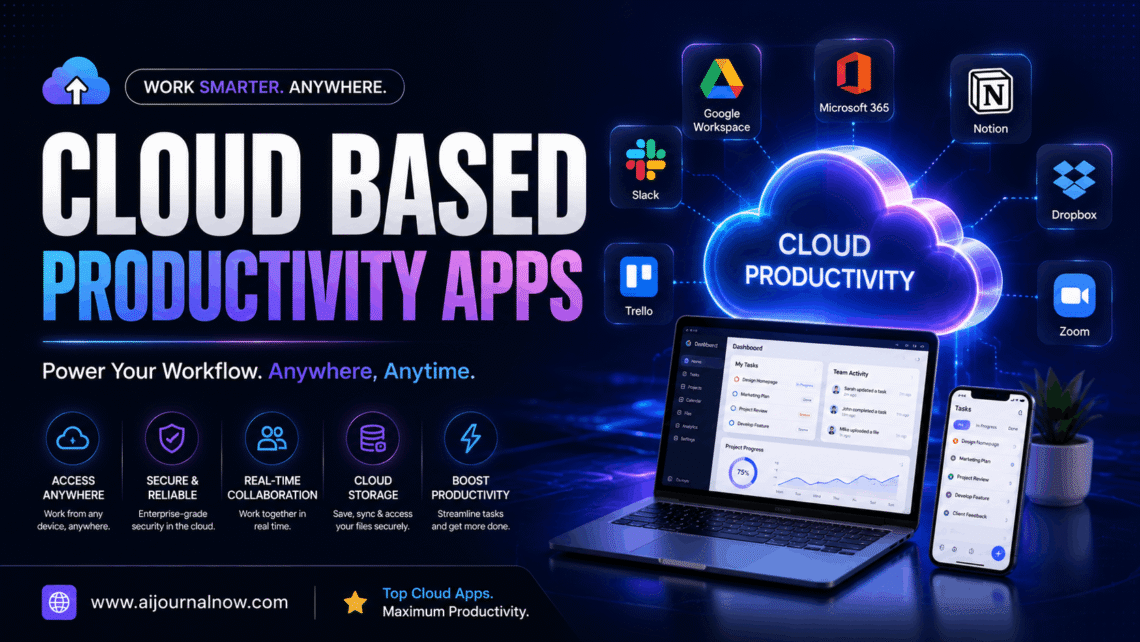
Google Workspace is perhaps the most familiar example. This umbrella includes Google Docs, Sheets, Slides, Gmail, and Google Drive. The other big participant is Microsoft 365, which offers Word, Excel, PowerPoint, and Teams in a cloud-connected way. Then there are the more specialist applications. Notion for notes and project wikis. Trello and Asana for task management. Slack for team communication. Canva for visual design.
They all have the same core principle: your work lives on a server, not a hard drive, so you can get to it from anywhere with an internet connection.
How Do Cloud Productivity Apps Work
The mechanics are less complicated than they sound. When you type a document in Google Docs, your keystrokes are transmitted to Google’s servers and stored there in near real time. The one you see on your laptop is actually being retrieved from those servers and shown in your browser. If you open that same document on your phone five minutes later, it shows all the edits you just made—because both devices are reading from the same source.
And that’s what makes real-time collaboration feasible. Two people may work on the same spreadsheet at the same time, watch each other’s cursors, and offer comments—all without emailing files back and forth or worrying about conflicting versions.
Most cloud-based productivity tools also have automated version history, so you can roll back to an older draft if something goes wrong. That alone has saved untold hours of lost effort for those who used to rely on a single saved file.
The obvious negative is you need internet. Some programs have offline options; for example, Google Docs and Notion have offline modes, but it’s restricted functionality, and you sync when you rejoin. If you drop out halfway through a meeting, there’s a problem that the apps can’t completely tackle.
Why Cloud-Based Productivity Apps Really Matter
Access Anywhere
This is the one that everyone says first because it’s really life-changing. You begin a report on your office laptop, edit it on your phone on your way home, and finish it on your home computer—no USB drives, no emailed attachments, no misunderstanding about which version is current.
This kind of flexibility isn’t a perk, especially for remote workers and freelancers. It’s essential.
Simple Collaboration
Before cloud-based productivity tools meant somebody was constantly waiting to collaborate. You’d email a file, they’d amend it and send it back, and then you’d manually combine the changes. Tools like Google Docs or Notion allow multiple individuals to work on the same document at the same time. Comments and revisions appear immediately. It’s the difference between passing a notebook around a table and everyone writing in it simultaneously.
Minimize cost
With old-school software licenses—like Microsoft Office—you bought vast chunks of software all at once. Most cloud-based productivity tools are subscription-based, often with generous free tiers. Google Workspace’s main apps are free for personal use. Notion’s free plan is enough for most individual needs. That’s a big deal for small enterprises and students on a budget.
Automatic Updates and Restores
No need to download an update or lose information because you forgot to save it. The software updates itself on the server side, and your work is backed up continuously. That peace of mind is tougher to define but easy to understand the first time a laptop is stolen or a hard drive fails.
Limitations You Need to Know Before You Commit
No tool is perfect, and cloud-based productivity tools have actual limitations that are worth knowing before you construct your whole routine around them.
- Internet reliance. Offline modes exist; however, they are limited. Cloud technologies can be more frustrating than helpful if you’re doing heavy computation or working with a spotty connection.
- Privacy and data ownership issues are real. When your work is stored on Google or Microsoft servers, you are placing your data in the hands of those businesses. For most personal use, this is an even trade-off. If you are a business that handles sensitive client data, then you should evaluate the privacy policies, data residency options, and compliance certifications of any product you implement.
- Feature gaps might also trip folks transitioning from desktop software. Google Sheets is great, but it doesn’t have all of the formulas and formatting options Excel has. If you use complex spreadsheet functions professionally, you may end up running both.
- Subscription fatigue is also a thing. But it all adds up, as each app has its own monthly charge. Freelancers paying separately for Notion, Slack, Canva Pro, and Google Workspace may pay more than they think.
Cloud Productivity Apps for Different Types of Users
For Students
The logical starting point is Google Workspace, which is free, trustworthy, and already recognizable to most schools. Google Docs (for writings), Google Sheets (for data projects), Google Drive (for keeping it all). Notion is good as a study planner and note-keeping system. Both sync between devices, which is important when you’re bouncing between a school computer and your own laptop.
For Freelancers
Cloud-based productivity tools can offer a complete office setup for a fraction of the cost. Notion or Trello for monitoring client projects; Google Docs for proposals and deliveries; Canva for design work; Slack or Google Meet for client contact. All of what you have from whichever device you’re working from that day.
For Small Business Owners
Coordination can become very complicated very quickly with a small crew. With cloud-based productivity programs like Google Workspace or Microsoft 365, everyone’s on the same page with papers and emails. Project & task management with Asana or Monday.com. Slack organizes communication without drowning you in email threads.
For Bloggers and Content Creators
Around Google Docs and a content calendar in Notion or Trello, you can build a simple, flexible, and almost free writing approach. Share drafts with editors. Track post statuses. Store all your research in one structured system—available wherever you’re writing that day.
Picking the Right Cloud-Based Productivity Apps for Your Needs
The honest answer: start small. Choose a couple of tools that address a current problem you have. Google Workspace does most people’s needs for documents, spreadsheets, and storage. If you need organization for your projects, add a task organizer like Trello or Notion.
Don’t get sucked into signing up for ten applications because each one seems useful. Tool overload is a productivity killer. Period. The greatest cloud-based productivity apps are the ones you’ll use regularly, not the ones with the biggest feature list.
Feel free to try out the free tiers. They are actually useable, not simply teaser versions, and most major platforms have them. Only upgrade when you meet a roadblock that the free plan can’t get through.
An Area For Practical Landing
Cloud-based productivity tools are worth it. Most people—students, freelancers, remote workers, and small teams—have genuine advantages over local software: accessibility, collaboration, automatic backups, and cheaper cost. The limits are real, but you can work with them once you know them.
The ideal way is to choose the tools that suit the way you actually operate, not the way you think you might work someday. Start with a tiny amount, create the habit, and then increase your stack as your needs become evident.
Frequently Asked Questions (FAQ)
Q1: Are cloud-based productivity apps secure to use?
Yes, in general. The big platforms like Google and Microsoft spend huge amounts on security, encryption, and compliance certifications. That said, check out the privacy policy of any apps you use professionally, especially if you work with sensitive client data. Look for technologies with two-factor authentication and clear data residency policies.
Q2: Can I use cloud-based productivity apps without an internet connection?
Some products have limited offline access. Both Google Docs and Notion feature offline modes that enable you to view and modify content and then sync when you reconnect. However, real-time collaboration and some of the features require an active connection. For workflows that are really offline-heavy, hybrid techniques with local backups may perform well.
Q3. What are the top free cloud-based productivity applications?
The basic tools of Google Workspace—Docs, Sheets, Slides, Drive, and Gmail—are free, covering virtually all personal and student needs. Notion’s free plan is a great one for people. Trello’s free version is quite good for simple project management. Canva is a very good free plan for design.
Q4. What is the difference between cloud-based productivity apps and classic desktop software?
Desktop software is traditionally installed locally, and files are stored on your hard disk. Cloud-based productivity apps operate on remote servers and store your data online. The primary differences are accessibility (cloud tools are accessible from any device), collaboration (several people can work at the same time), and updates (cloud applications update automatically without user input).
Q5: Are cloud-based productivity apps good for firms with sensitive data?
Yes, if properly set up. Google Workspace and Microsoft 365 enterprise levels offer additional security, compliance, and data residency capabilities to satisfy regulatory requirements for various businesses. Before migrating sensitive business workflows to any cloud platform, consider seeking advice from an IT specialist.