If you’ve ever been part of a busy Discord server and seen members with different coloured names or tags like “Moderator,” “VIP,” or “New Member” — those are roles at work. And if you’re operating your own server, learning how to make roles on Discord is one of the most critical things you can learn.
Roles are not merely superficial. It’s a way to manage who can do what, who can send messages in specific channels, who can kick members, who can access special stuff. Get the role structure correct and your server will run like clockwork. If you don’t pass it up, you’ll have anarchy on your hands fairly fast.
The good news? It’s easier than you think to set up roles. Let’s go back to the beginning.
How to Create Roles on Discord Accessing Server Settings
First off, you need to be the owner of the server or have a role that has the “Manage Roles” access. You’re good if you made the server, you’re the owner.
Here’s how to get started:
- Open Discord and go to your server
- Click the server name at the upper left to open a drop-down menu
- Choose Server Settings
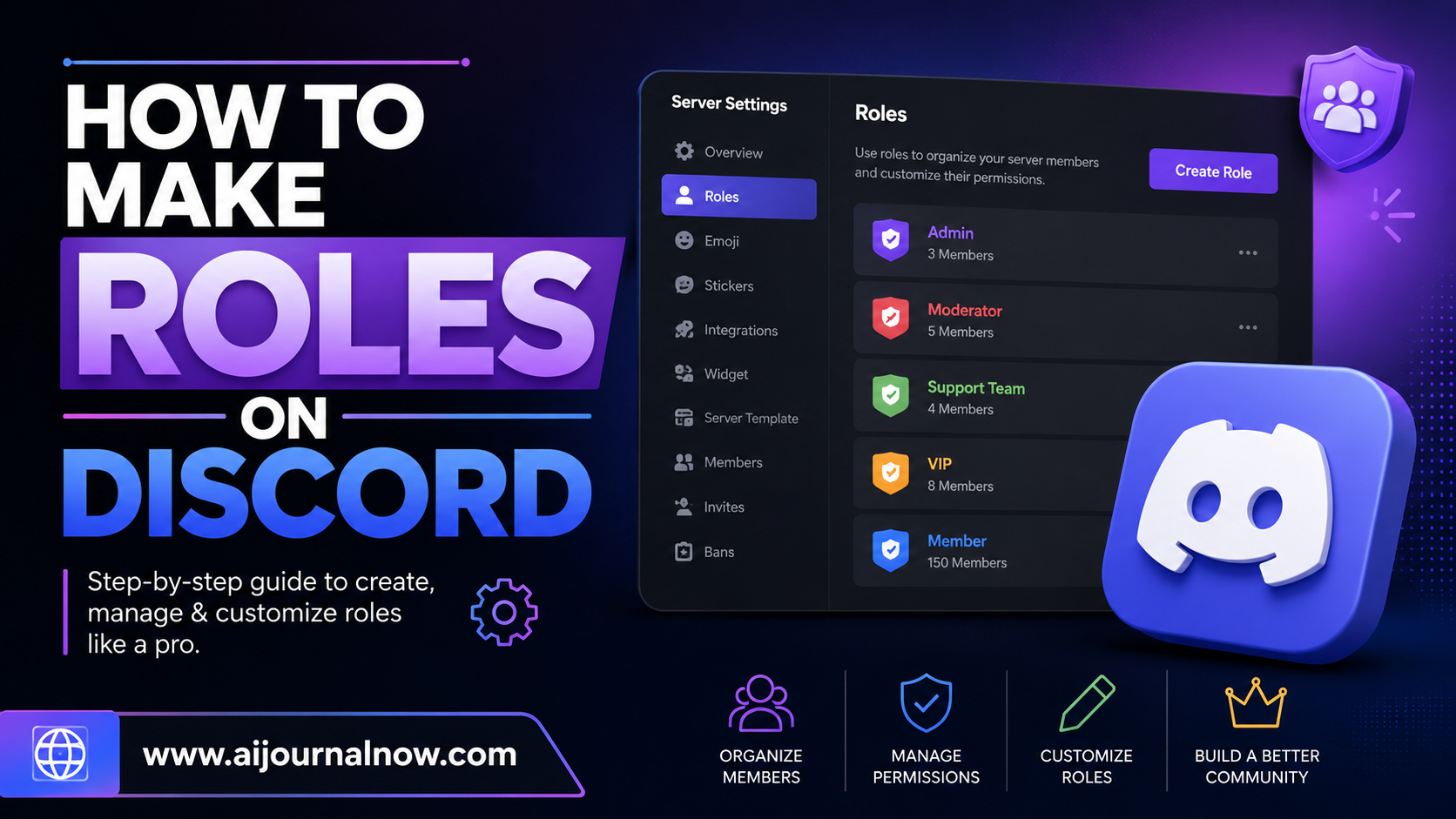
- Click Roles in the left sidebar
You’ll be taken to the Roles page where you’ll see all the current roles in your server. Usually there is only one by default: @everyone. That’s the basic role every member gets by default.
From here, click the “+” button next to “Roles” to create your first role. You’ve given it a name, perhaps picked a colour for it, and you’ve done the fundamentals.
How to Make Roles on Discord: Understanding Permissions
This is where roles begin to get seriously strong — and where many new server owners get confused.
Every position has a full list of permissions you can turn on or off. They decide the extent of the powers granted to members in that function. Here are some crucial ones to know:
- Administrator — grants complete access to the server. You can give this to only those you trust implicitly.
- Manage Channels — members can create, update and delete channels
- Kick Members / Ban Members — Moderating powers
Manage Messages – members can delete other people’s messages (helpful for moderators)- Send Messages / Read Message History – basic messaging permissions - Mention @everyone — ping everyone on the server (you probably don’t want a lot of people to have this)
Practical example: if you’re operating a gaming community, you might make a “Moderator” role with Kick Members, Ban Members, and Manage Messages turned on — but not Administrator. This allows your mods to manage rule-breakers without having full access to server settings.
Meanwhile your “Member” role may only have Send Messages and View Channels enabled. Simple. Controlled. Clean.
How to Create Roles on Discord: Setting Role Hierarchy
The order of roles matters — a lot. Discord has a role hierarchy that goes from top to bottom.
The Roles settings page lets you reorder roles by dragging them. The top job is the most powerful and the bottom role is the least powerful. The @everyone role is always at the bottom.
Here is a simple hierarchy example for a server for a content generator :
- Owner (You)
- 2. Admin
- 3. Mod
- Member in Good Standing
- Membership
- New Member
- @everyone
On Discord, a Moderator cannot kick an Admin because Admins are higher in the hierarchy. This stops anyone from unintentionally (or intentionally) misusing their role powers on those above them.
A typical mistake: having mod roles below normal member roles. This makes moderation rights absolutely meaningless as moderators can only handle users with lower roles than theirs.
Also Read: Instagram Post Examples That Work (And How To Write Your Own)
How to Make Roles on Discord: Assigning Roles to Users
Once you’ve developed your roles, you need to actually assign them to people. There are two basic ways to go about this:
Handbook: Right-click on a member’s name on the server and click on “Roles.” Turn on whatever role you wish to give them. Easy and simple for individual members.
Bots: Manual assignment becomes old fast if your server is growing. You may use bots like MEE6, Carl-bot, and Dyno to automate assigning roles in many ways—self-assignable positions through reaction menus, roles granted when someone levels up, verification roles for new members, etc.
For example, a study group server might have a bot that allows participants to select their own topic roles (“Math,” “Science,” “Literature”) with a reaction click. No labour on your part, and members get precisely what they need.
How to Make Roles on Discord: Roles to Manage Channel Access
That’s one of the handy things you can do with roles – restrict or grant access to some channels.
Each channel has its own permission set. You can override the server-wide role permissions for individual channels, allowing you to build a channel that only “VIP” users can see, or a staff-only discussion channel that regular members can’t see.
Here is how to put it up:
- Right click on the channel and choose Edit Channel
- Click on **Permissions
- Click on the “+” to add a role
- Turn on ** View Channel ** for roles that should view it, and off for positions that shouldn’t
Say, a business owner who’s developing a client community might create a #client-resources channel that only paying clients can see. The channel is automatically exclusive by assigning the “Client” role to authenticated consumers.
In conclusion
Setting up roles on Discord isn’t hard after you learn the basics. Honestly it’s one of the easier parts of running a server. Begin with a simple structure, get the hierarchy right and grant rights wisely rather than just giving Administrator to everyone who begs nicely.
The difference between a competently run server and a chaotic one is knowing how to properly setup roles on Discord. Spend a little effort upfront planning your structure and you’ll save yourself a lot of trouble as your community expands.
FAQ
Q1: Do you need any particular rights to create roles on Discord? Yes. You must be the owner of the server or have a role with the “Manage Roles” permission enabled. You can create or alter only roles that are below your own in the hierarchy – you cannot edit roles that are above yours.
Q2: What is the max number of roles on a Discord server? Discord allows up to 250 roles per server. That is more than enough for practically any community. With that stated, it’s nearly always better to keep your role structure clear and functional than establishing thousands of overlapping responsibilities that confuse people.
Q3: Can members assign their own roles on Discord? Not by default – role assignment requires someone with the Manage Roles authority. But bots like Carl-bot and MEE6 make self-assignable roles super easy to set up using reaction menus or slash commands, so users can choose their own without requiring moderator aid every time.
Q4: Why is my role colour not shown on members’ names?
The colour of the highest coloured role in a member’s role list will be shown in Discord. If a member has a higher position that is either colourless or set to the default, then your coloured role is ignored. Place the role with the colour you desire above any colourless roles in the hierarchy.
Q5: Can I set various permissions for a role in separate channels? Sure, this is one of the best things about Discord. Each channel has its own set of permission overrides, which are combined with the server-wide role permissions. You can give a role to send messages in one channel and deny it in another. For each position, simply go to Edit Channel → Permissions to set channel-specific rules.