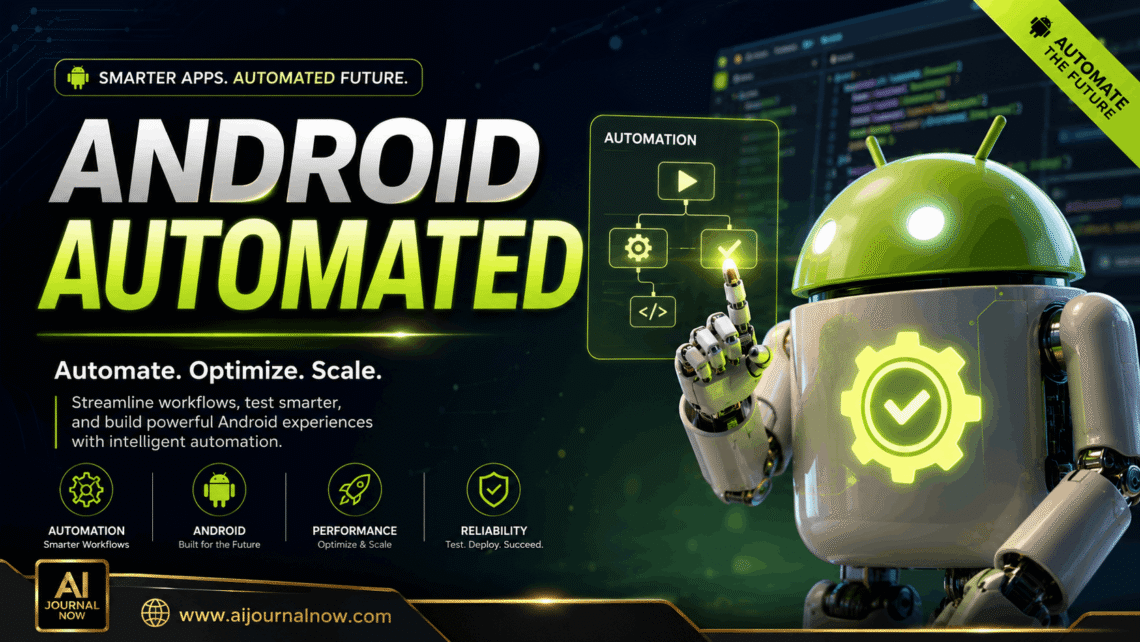
If you’ve ever wanted your phone to handle repetitive tasks for you, Android Automated is exactly what you need to know about. Automation on Android has become compelling and surprisingly accessible, even if you aren’t a developer, from scheduling messages to running complex workflows without touching your screen.
This guide explains everything clearly. No computer jargon overload. No complicated tutorials. An honest look at what android automated really means, how it works in practice, and if it is worth your time.
What ‘Android Automated’ Means
Basically android automated means setting up your Android smartphone to conduct things automatically (based on time, location, events or user-defined conditions) without you having to manually do anything every time.
Think of it as instructions for your phone. “When I get home, turn on the WiFi and lower the volume.” Or, “At 7 AM every morning, open my task list and send me a summary.” They are not future thoughts. It’s stuff people are doing rightnow, usingg tools that are free or cheap to use.
That idea runs the gamut, from simple native Android capabilities like planned Do Not Disturb to full-on macro apps that link dozens of operations together with a single tap.
How Android Automated Tools Work
Most of the Android Automation solutions work on a trigger-action model. You establish:
A trigger – what kicks off the process (a time, a place, an app launching, a notification)
An action — what the phone really does when it is activated (send a message, toggle a setting, start an app, run a script)
For this, apps like Tasker, Automate, and MacroDroid are best. They give you a visual interface so you can construct these workflows without writing any code. You drag, connect and configure. Save. Done.
Some apps even offer variables, loops and conditional logic – so Android Automation can be much more than basic shortcuts. It’s used by marketers to autopost drafts. It’s used by freelancers to track billable hours. Students create automatic study reminders that sync with their calendar.
It is also Google’s own ecosystem. The android automated environment is full of Google Assistant routines, the built-in automation within Digital Wellbeing on Android, and third-party connections like IFTTT (If This Then That).
Android Automated in Action: Real-World Examples
This is where the practicalities come in. See how different people actually use Android Automation in their everyday lives:
For Students
A student, for example, may configure Android Automation to mute their phone automatically when they enter a school’s GPS zone and then unmute when they exit at departure time. No more forgotten silences in the class. No more missed calls after hours.
For Freelancers & Remote Workers
Android timetracking automation for freelancers is adored. So an automation may log the precise time you open an app like Toggl or Clockify, and the feature helps to passively track billable hours. Others use it to post a status message saying that they are commencing work for clients every morning without lifting a finger.
For Business Owners & Marketers
Social media administrators receive collected notification digests via android automated procedures instead of getting harassed throughout the day. Some build automations that automatically back up new contacts to Google Sheets right after storing them – a simple yet powerful CRM hack.
For regular users
Android Automation makes life easier even for nonprofessionals every day. Automations like turning down the screen brightness at night, enabling data saver at 20% power, and playing a certain song when you plug in your headphones – these little automations add up.
Top Android Workflow Apps
All automation apps aren’t created equal. Here’s a quick rundown:
Tasker
The most powerful automated app for Android. Tasker is compelling but has a severe learning curve. Good value for power users that demand fine-grained control.
MacroDroid
A more friendly version of Tasker, MacroDroid, has a more visual, beginner-friendly interface and has a library of prebuilt macros. It’s a great place to start if you’re new to automating Android.
Automatize
Automate is a flowchart-type interface; it is midway between MacroDroid and Tasker in terms of intricacy. Excellent for visual thinkers.
IFTTT IFTTT
(If This Then That) integrates your Android with hundreds of third-party services – Google Sheets, Twitter, Dropbox, and smart home devices. It is not really about deep device control; it is more about crossplatform android automated connectivity.
Routines using Google Assistant
Built into Android. Simple Stable Good for voice-activated automations Not as much as Tasker, but zero setup friction.
Why You Should Android Automated
There is an obvious case for Android Automation. What you do receive is the following:
Timesaving — Removes repetitive manual processes. It sends a daily check-in message automatically, it changes settings based on location, it launches apps on a schedule, and it all runs itself.
Consistency — Humans forget. Automations don’t. When you have android automated to do repeating activities, the consistency alone is enough.
Less mental burden — Fewer microdecisions to make during the day. Instead, your phone becomes part of your life and doesn’t demand your attention all the time.
Increased productivity – particularly for professionals. Android Automation can organise everyday workflows and manage focus modes and intelligent routing notifications by significantly improving output.
Limitations You Should Be Aware Of
Android Automation isn’t magic, and it’s fair to talk about the negatives.
Battery drain – Some automation programmes can be a drag on your battery life, especially those that run in the background all the time. Once you have sophisticated workflows set up, keep an eye on your battery utilisation.
App limitations – Android has energy efficiency settings that can terminate background apps, which can stop automations. You might need to whitelist your automation app under battery settings.
Learning curve – Apps like Tasker take time to learn in the real world. If you want intricate android automated workflows, be prepared to spend some time setting them up and troubleshooting them.
Device compatibility — Certain functions may behave differently based on your Android version or device manufacturer. Different brands like Samsung, Pixel, etc. have a slightly different authorisation structure which affects how automations behave.
Android Automated Getting Started
If you’re a newbie, start with something simple. Pick one task that you conduct manually on a daily basis and try to automate it.
MacroDroid or Google Assistant Routines are excellent starting points. Both are free and beginner-friendly. Build something tiny, like turning on your WiFi automagically when you reach home. Once you realise that there are going to be more opportunities everywhere.
You can eventually try more complicated Android Automation configurations. Look for premade profiles to adapt on Reddit (r/tasker is a good place to start) or YouTube tutorials and join communities.
The trick is to avoid overdoing it. One automation at each time. Build it as you go.
Final Thoughts
Android Automation is one of those things that seem hard until you try it – and then you can’t imagine going back. There’s a workflow here that can actually assist, whether you’re a student trying to keep your attention, a freelancer managing a busy schedule or a marketer seeking to cut down on manual busywork.
Begin with modest steps, choose the perfect app for your comfort level, and let your phone do what it actually can do. You have a powerful computer in your pocket; use it.
Frequently Asked Questions
Q1: Is android automated safe?
Yes, mostly. There are popular and well-established programmes such as Tasker and MacroDroid. As with any programme, check what permissions they ask for and don’t give them access to anything they don’t need.
Q2: Does android automated need root access?
Not necessarily. Most simple and intermediate automations function without root. A few of the more complex Tasker capabilities require root access, but most of the essential android automated configurations work great on nonrooted devices.
Q3: Will android automated make my phone slower?
It depends on the quantity of automations you have running and how resource-heavy they are. Lightweight automations don’t really matter. Complex, always-on workflows may require more RAM and battery. Start small and see how it goes.
Q4: Can I run android automated without technological knowledge?
Yes, absolutely. Apps such as Google Assistant Routines and MacroDroid are for nontechnical users. No code required. If you can follow a recipe, you can create a simple automation.
Q5: What is the greatest free app for android automated beginners?
MacroDroid is a free tier that fulfils most basic needs. Google Assistant Routines are free and incorporated into Android. Both are good places to start, and both are free.
Also Read: Android 10 Recent Apps: The Ultimate Guide for Everyone