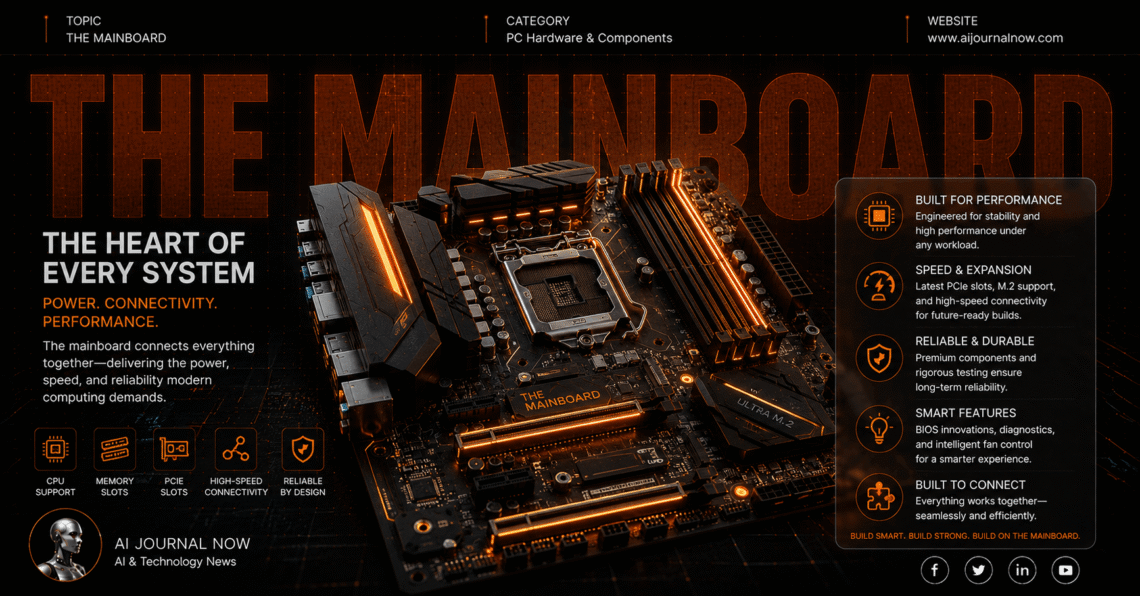
Every computer has one part that everything else depends on. That part is The Mainboard—and if you’re building a PC, upgrading one, or just trying to understand what’s inside your machine, this is where you need to start.
It connects everything. CPU, RAM, storage, graphics card. Without it, none of those components can talk to each other. So let’s break down exactly what The Mainboard is, what’s on it, and why it matters more than most people realize.
What Is The Mainboard?
The Mainboard—also commonly called the motherboard—is the primary circuit board inside any computer. Think of it as the central nervous system of your PC. Every component you install plugs into it, draws power through it, or communicates via it.
It’s a flat, rectangular board covered in slots, ports, chips, and connectors. It looks complicated. But once you understand what each part does, it starts to make a lot of sense.
The Mainboard doesn’t do the computing itself. That’s the CPU’s job. What it does is make sure every other part can work together efficiently. It’s the coordinator — not the performer.
And the size of The Mainboard matters too. The most common form factors are ATX, Micro-ATX, and Mini-ITX. ATX is the full-size standard, offering the most slots and expansion options. Micro-ATX is a bit smaller. Mini-ITX is compact — great for small builds, but with fewer expansion slots.
Your case, your cooling options, and your component choices all depend on which form factor you pick. So this decision comes early when planning a build.
The Key Components Found on The Mainboard
Here’s a rundown of what you’ll actually find on The Mainboard and what each part does.
The CPU Socket
This is where your processor sits. And it’s critical — not every CPU fits every socket. Intel and AMD use different socket types, and they change over generations. For example, Intel’s LGA1700 socket works with 12th and 13th gen Core processors. AMD’s AM5 socket is designed for Ryzen 7000 series chips.
Before buying any processor, check that your board’s socket is compatible. It’s one of the most common and costly mistakes beginners make.
RAM Slots
The Mainboard has memory slots—usually two or four—where your RAM sticks go. Most modern boards support DDR5 or DDR4 memory, but not both. Again, compatibility matters. Check your board’s specs before buying RAM.
Dual-channel memory — using two matched sticks instead of one — gives a noticeable performance boost on most systems. It’s worth doing right from the start.
The Chipset
The chipset is a chip (or set of chips) on The Mainboard that manages communication between the CPU and everything else. It determines which features your board supports — USB speeds, PCIe lanes, overclocking capability, and more.
Higher-end chipsets like Intel’s Z790 or AMD’s X670E allow overclocking and offer more connectivity options. Budget chipsets like B660 or B650 are more limited but cover most users’ needs well.
Expansion Slots — PCIe
PCIe slots are where your graphics card, sound card, or NVMe expansion cards plug in. The main slot — usually the top one — is PCIe x16, which is what your GPU uses. Smaller PCIe x1 slots handle things like Wi-Fi cards or capture cards.
PCIe 5.0 is now showing up on newer boards, offering significantly faster data transfer speeds than PCIe 4.0. For most users today, PCIe 4.0 is still more than enough—but it’s something to watch as storage and GPU tech catches up.
Storage Connections on The Mainboard
This is where things have changed a lot in recent years.
SATA Ports
SATA ports connect traditional hard drives and SATA SSDs. You’ll typically see four to six of them on a standard board. They use a small L-shaped connector and a separate power cable from your PSU.
SATA is reliable and still widely used — especially for large-capacity storage where speed isn’t the priority.
M.2 Slots
M.2 is the modern standard for fast storage. An M.2 NVMe SSD plugs directly into The Mainboard—no cables needed. It’s compact, fast, and the preferred choice for your primary drive.
Most current boards have two to four M.2 slots. Some are PCIe 4.0, some PCIe 5.0, and older ones are PCIe 3.0. The slot generation affects your maximum read and write speeds. Top NVMe drives on PCIe 4.0 can hit around 7,000 MB/s read speeds — roughly ten times faster than a SATA SSD.
Power Delivery and VRMs — Why They Matter
Here’s something a lot of beginners skip over: the power delivery system on The Mainboard.
The VRM — Voltage Regulator Module — converts power from your PSU into the precise voltages your CPU needs. A well-designed VRM keeps your CPU stable under load, especially when running demanding tasks or overclocking.
Budget boards often have weaker VRMs. That’s fine for mid-range CPUs at stock speeds. But pair a high-end processor with a poor VRM and you’ll see thermal throttling and instability.
I’ve noticed that people obsess over CPU and GPU choices but completely overlook VRM quality. It’s a detail that genuinely affects performance and longevity. Sites like Tom’s Hardware publish detailed board reviews that include VRM analysis — worth reading before you buy.
BIOS and UEFI — The Board’s Built-In Software
Every The Mainboard ships with firmware—either classic BIOS or the modern UEFI. You access it by pressing a key (usually Delete or F2) during boot.
From here you can:
Set your RAM to its rated speed (called XMP or EXPO profiles). Adjust fan curves and cooling behavior. Check system temperatures. Enable or disable onboard features. Update the firmware itself.
UEFI has largely replaced traditional BIOS. It supports larger drives, faster boot times, and a mouse-friendly graphical interface. Most people rarely need to touch it. But knowing it’s there—and what it can do—is genuinely useful.
One practical thing to know: when you install a new CPU that’s newer than your board, you may need a BIOS update before it works. Some boards allow this without a CPU installed (called BIOS flashback). Others don’t. Check before you buy.
Onboard Features Worth Paying Attention To
Modern versions of The Mainboard pack a lot into one board. Here’s what to look at beyond the basics.
Onboard Wi-Fi — Higher-end boards include Wi-Fi 6E or Wi-Fi 7. Budget boards often skip it entirely, requiring a separate card or USB adapter.
USB ports — Check both rear I/O ports and internal headers. Front panel USB-C is increasingly common and worth having.
Audio — Most boards include a Realtek audio chip. It’s decent for most users. Audiophiles may want a dedicated sound card, but honestly, for gaming and general use, onboard audio is fine.
Ethernet—2.5 Gb LAN is becoming standard on mid-range and above boards. It’s faster than the old 1Gb standard and worth having if your router supports it.
How to Choose the Right The Mainboard for Your Build
This comes down to a few key questions.
What CPU are you using? That determines your socket and compatible chipset. What’s your budget? Higher chipsets cost more but offer features most users don’t need. How much do you want to expand in the future? More PCIe slots and M.2 slots give you room to grow. Do you need Wi-Fi built in? If so, factor that into your board selection.
And don’t just buy the cheapest compatible option. The Mainboard is the foundation everything else plugs into. Skimping here can limit your performance and upgrade options for years.
Resources like PCPartPicker are genuinely useful for checking compatibility before you buy. It flags conflicts between your CPU, board, RAM, and case — saving you from expensive mistakes.
Why The Mainboard Deserves More Attention Than It Gets
People get excited about CPUs and GPUs. Those are the flashy parts. But The Mainboard is what determines whether all those expensive components actually work together well.
A good board gives you stable power delivery, fast connectivity, room to expand, and firmware that’s easy to update. A bad one causes headaches: instability, limited features, and upgrade dead-ends.
When building or upgrading a PC, give The Mainboard the same research time you’d give your processor. It’s worth it. The rest of your system will thank you.
Also Read: AI Tools for Freelancers: Work Smarter, Earn More