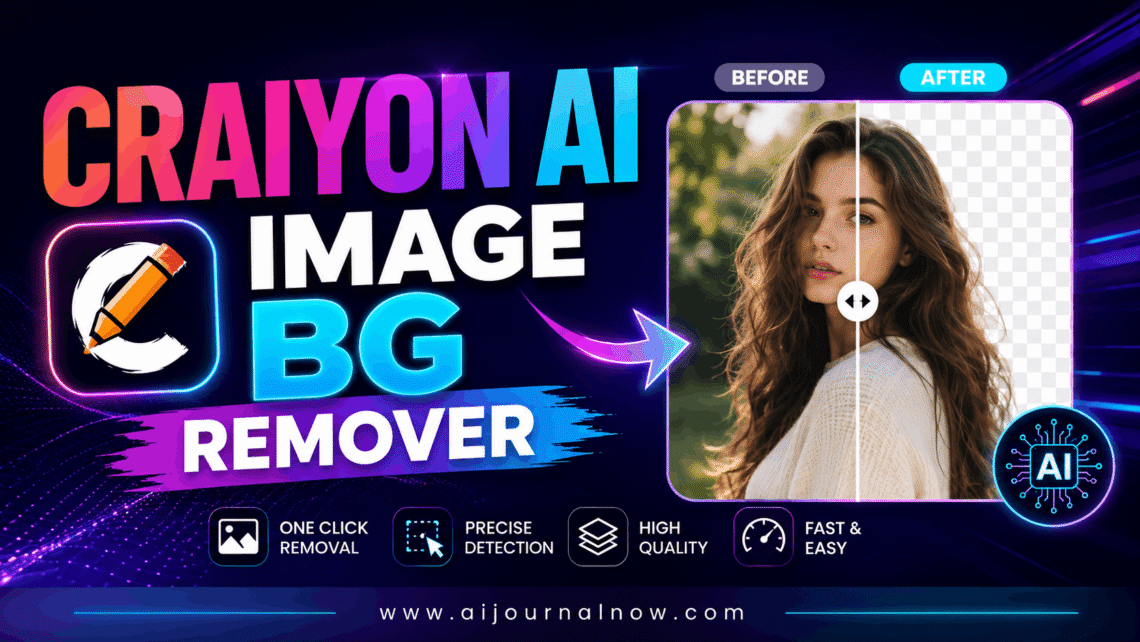
So I’ve been messing around with AI art tools for a while now, and one thing that keeps coming up is what to do once you’ve actually generated something cool. You’ve got this neat little character or product mockup, but it’s sitting on some random background that doesn’t fit your project. That’s where the CRAIYON AI IMAGE BG REMOVER comes in, and honestly, it’s one of those features that’s really useful without drawing attention to itself.
If you’ve used Craiyon before (it used to be called DALL-E mini, for anyone who remembers those early days of weird AI art), you probably know it as a free image generator. But it also has a built-in tool that strips the background off any image, whether that’s something you made with Craiyon or just a photo you uploaded from your phone.
So, what is the Craiyon AI Image BG Remover, exactly?
At its core, it’s an automated tool that detects the main subject in your image and cuts away everything else, leaving you with a transparent background. No selecting, no tracing, no fiddling with lasso tools. You upload an image, the AI does its thing, and a few seconds later you’ve got a cutout.
What I like about it is the simplicity. There’s no learning curve. You drop in your photo, and the CRAIYON AI IMAGE BG REMOVER automatically gets to work — you don’t even need to click anything extra to start the process. It just goes.
Once it’s done, you can usually choose to keep the background transparent or swap it out for a solid colour like white or black. That’s handy if you’re prepping images for an online store, where many platforms want a clean white background for product photos.
How the Tool Actually Works
Without getting too deep into the technical weeds, the tool uses a machine learning model that has been trained to recognise the difference between ‘subject’ and ‘background’ pixels. It looks for edges, contrast, and shape patterns to figure out where your main object ends and the background begins.
In my experience, it does fairly well with images that have clear contrast — like a person standing against a plain wall, or a product photographed on a simple backdrop. Where it tends to struggle a bit more is with fine details. Things like wispy hair, fur, or anything with a lot of fine texture can sometimes come out looking a little rough around the edges.
Who’s This Actually Useful For?
I think the people who’ll get the most mileage out of this software are folks doing small-scale content creation. Think Etsy sellers, social media managers, bloggers, or anyone making memes and graphics who doesn’t want to pay for Photoshop or learn a complicated editing programme.
Quick Scenario: Product Photos for an Online Shop
Say you sell handmade candles. You photograph your kitchen counter — not exactly studio quality, but the candle itself looks great. Run that through the CRAIYON AI IMAGE BG REMOVER, and suddenly you’ve got a clean cutout of just the candle. Just drop that onto a white background or your website’s colour scheme, and it instantly looks much more professional with no extra effort.
Quick Scenario: Social Media Graphics
Or maybe you generated a fun character illustration using Craiyon’s image generator and want to use it as a sticker-style graphic for Instagram. Removing the background means the character can sit on top of any post design without that ugly rectangular box around it.
Pros and Cons (Because Nothing’s Perfect)
What works well:
- It’s free to try, which is a big deal if you’re just testing things out
- Genuinely no skills needed — upload and go
- Good for quick, casual use where perfection isn’t critical
- Works on multiple image formats like JPEG and PNG
Where it falls short:
- Complex images with lots of fine detail (think jewelry, lace, or detailed hair) can come out with rough edges
- If the result isn’t great, your main option is to just hit retry and hope for a better pass — there’s not a lot of manual fine-tuning available
- Heavier background removal use might require a paid plan, depending on how Craiyon’s pricing is set up at the time you’re using it
And honestly, that last point about retrying is something I’ve noticed comes up a lot. If the first attempt doesn’t nail it, sometimes running it again gives you a noticeably cleaner result. It’s not the most elegant workflow, but it’s quick enough that it doesn’t really matter for casual use.
How Does It Compare to Dedicated Craiyon AI Image BG Remover Tools?
This is probably the question most people actually want answered. There are tools out there built specifically for background removal – nothing else, just that one job – and they tend to do it really well. Remove.bg is one of the most well-known dedicated options in this space.
The CRAIYON AI IMAGE BG REMOVER is more of a convenience feature bolted onto a broader image generation platform. It’s there so you don’t have to leave the app and go find another tool for a simple task. For most everyday uses — memes, casual social posts, quick mockups — it’s more than good enough.
But if you’re running a business where image quality really matters, like that candle shop example, you might find yourself needing something with more precision for trickier images. Dedicated background removers are often built to handle exactly those tricky cases: intricate edges, gradients, and fine textures that trip up more general-purpose tools.
So I’d say think of it this way: for quick jobs, the built-in remover is great because it’s right there and it’s free. For anything going into a professional catalogue or print materials, running a second pass through a specialised tool is worth it, just to clean up any rough spots.
A Few Practical Tips From Using Craiyon AI Image BG Remover
Here’s something I’ve picked up from using this feature regularly:
Start with a decent photo. This sounds obvious, but the better your original image — excellent lighting and decent contrast between subject and background — the better the cutout will be. Garbage in, garbage out, as they say.
PNG is your friend. If you’re saving your Craiyon-generated image before running it through the background remover, save it as a PNG. It preserves quality better than JPEG, especially around edges, which matters a lot once you’re trying to cut something out cleanly.
Don’t be afraid to retry. Like I mentioned, the results can vary a bit between attempts. If the first pass leaves some weird artefacts or missed spots, running it again can help. It’s not guaranteed to resolve everything, but it often helps.
Check the fine print on commercial use. If you’re planning to use these images for a business – product listings, ads, whatever – it’s worth checking Craiyon’s terms first. Depending on your account type, there might be requirements around crediting the platform or keeping a logo on certain images.
Is Craiyon AI Image BG Remover Worth Using?
The free, built-in, no-fuss background remover attached to an AI art generator is definitely worth having in your toolkit. It’s not going to replace professional editing software like Adobe Photoshop for high-stakes work, but for everyday stuff, it saves a genuinely annoying step.
I keep coming back to it mainly because of the convenience factor. When you’re already working inside Craiyon to generate something, having the background removal right there means one fewer app to open and one fewer file to download and re-upload somewhere else. That alone makes it worth a try, even if you end up using something else for your trickiest images.
If you’re someone who generates a lot of quick graphics and just needs a clean cutout without drama, give the CRAIYON AI IMAGE BG REMOVER a shot. Worst case, it doesn’t nail it on the first try, and you hit retry. Best case, you’ve saved yourself a trip to another tool entirely.
Also Read: OurDream AI: A Honest Look at What It Does


